
Monsta Installation
Requisitos mínimos
Section titled “Requisitos mínimos”Esta é a configuração mínima para a instalação do Monsta:
| Item | Requisito Mínimo |
|---|---|
 | Espaço em disco 40GB livre para /var (configurações, banco de dados e logs) 300MB livre para /opt/monsta (programas e bibliotecas) |
 | Memória RAM 2GB de memória RAM |
 | Sistema Operacional Linux 64bits Sistema Operacional Linux recomendado: Fedora Server |
 | Processador Cores: 2 Velocidade: 1.8GHz |
Download do Arquivo
Section titled “Download do Arquivo”Logado em seu servidor Linux como root, execute os comandos abaixo:
Fedora/Red Hat
Section titled “Fedora/Red Hat”yum install -y wget && wget https://www.monsta.com.br/monsta/download/monsta-latest.rpmUbuntu/Debian
Section titled “Ubuntu/Debian”apt-get install -y wget && wget https://www.monsta.com.br/monsta/download/monsta-latest.debInstalação
Section titled “Instalação”Após baixar o arquivo de instalação do Monsta, execute o seguinte comando:
Fedora/Red Hat
Section titled “Fedora/Red Hat”dnf install -y monsta-latest.rpmUbuntu/Debian
Section titled “Ubuntu/Debian”export PATH=/usr/local/sbin:/usr/sbin:/sbin:$PATHdpkg -i monsta-latest.debA partir de agora o Monsta está instalado em seu servidor e pode ser acessado através das portas 80 (http) e 443 (https).
Primeiro acesso ao Monsta
Section titled “Primeiro acesso ao Monsta”Abra um browser e acesse:

Você pode optar por autenticar-se utilizando uma credencial existente através do botão “Entrar com minha conta” ou iniciar o fluxo de novo usuário clicando em “Criar nova conta”.

Preencha os campos para criar sua conta na nuvem e avance clicando em “Próximo”:
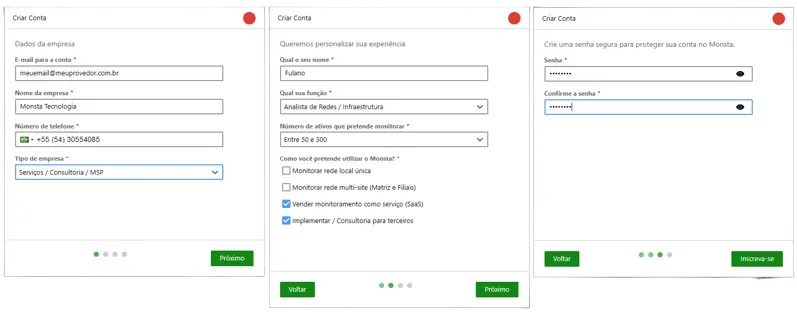
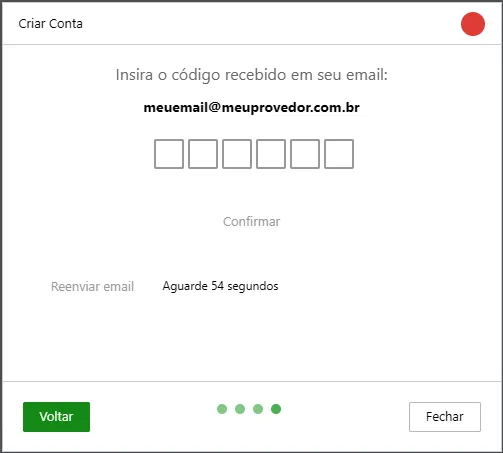
Você receberá em seguida um e-mail contendo um código para validar sua conta. Informe-o na tela abaixo e clique em Confirmar:
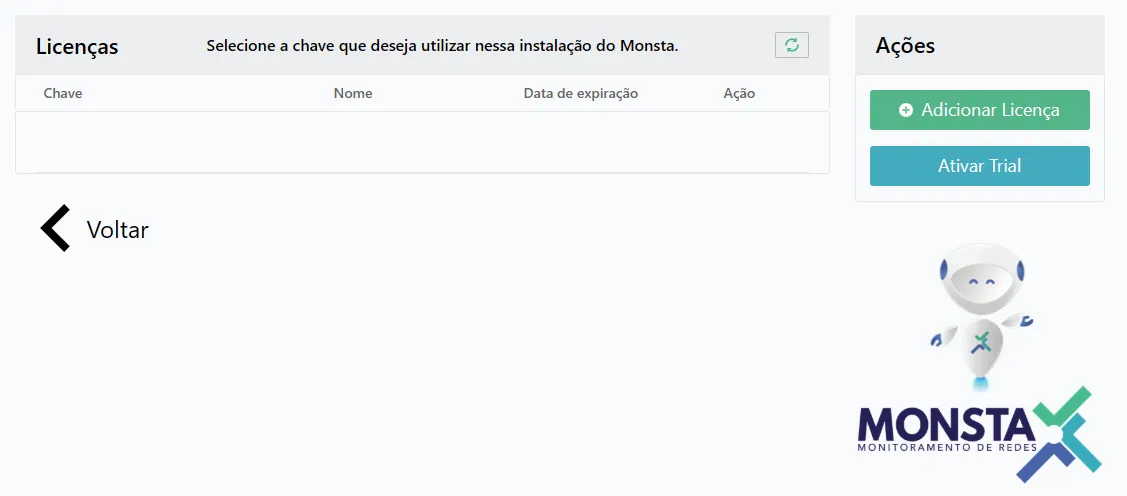
Após esse procedimento, você será direcionado para a tela de licenças. Como esta é uma nova conta, nenhuma licença será apresentada e você poderá selecionar se deseja assinar uma licença ou ativar a versão Trial. Clique no botão “Ativar Trial” para habilitar os 30 dias de teste do Monsta em sua empresa:
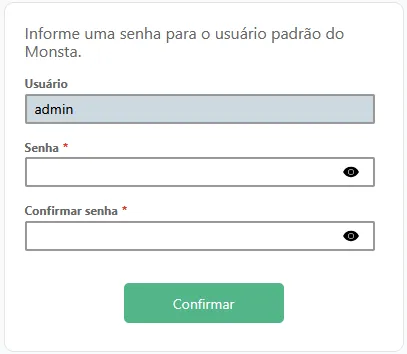
Você será encaminhado a tela para informar uma senha para o usuário “admin” do Monsta. Digite sua senha e clique no botão “Confirmar”:
Agora você será redirecionado a tela principal do Monsta:
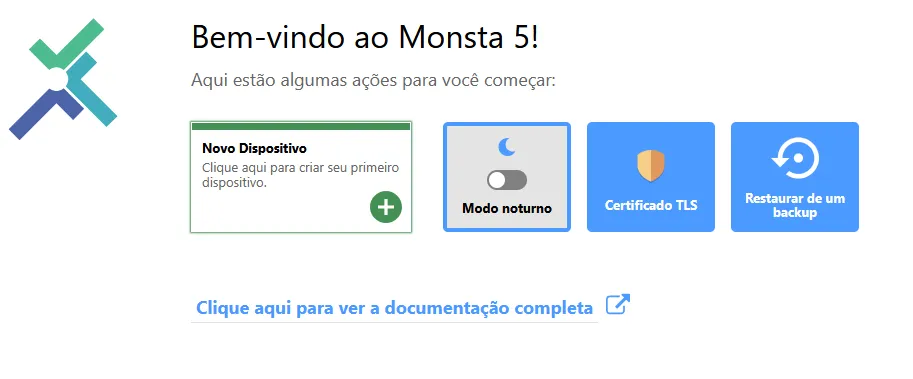
A partir desta tela você poderá criar e gerenciar os dispositivos a serem monitorados.
Para maiores informações, consulte o Manual do Usuário do Monsta.