Agent: Zero Conf Installation
This documentation describes the installation process for the Monsta Agent, a tool to extend monitoring of your platform to remote and distributed networks, ensuring performance and security through the QUIC protocol.
Agent Installation for Windows
Section titled “Agent Installation for Windows”- Download the agent program:
 | https://www.monsta.com.br/monsta/download/agent.msi |
- Logged in as a user with administrator privileges, run the installer “agent.msi”.
- When prompted, enter the Monsta license key to which you want to connect the agent.
Installation via the command line
Section titled “Installation via the command line”The installer agent.msi supports command-line parameters for automation. Integrated with the msiexec utility, it allows installation via GPO, eliminating the need for manual intervention in the graphical interface.
Command-line options:
| Option | Description |
|---|---|
LICENSEKEY=[license key] | Specifies the license key to which the Agent should connect. |
AGREE=[Y] | Confirms acceptance of the terms of use. |
Example usage:
msiexec /i agent.msi /quiet LICENSEKEY=AAAABBBBCCCCDDDDEEEEFFFFGGGGHHHH AGREE=YDevice Creation
Section titled “Device Creation”Once installation is complete, the Agent will automatically appear on the Configuration screen under Agents with the host identification. The monitored device will be created and listed instantly on the Devices screen with the same host name and ready for configuration and addition of new monitors.
How to Monitor Devices via the Agent Connection
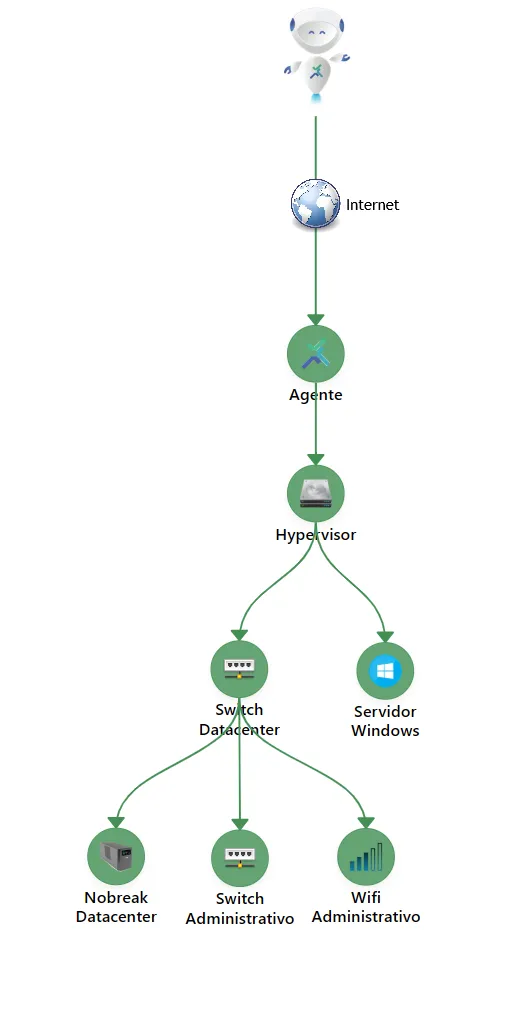
Section titled “How to Monitor Devices via the Agent Connection”To cover the entire remote network with a single agent, register the new devices in Monsta and set the device to be under the hierarchy of the host where the Agent is installed.
Hierarchy Example: