
How do I change my account email address in the Client Area?
To change the email address registered on your account in the Client Area of Monsta, follow the step-by-step instructions below:
Step-by-step instructions to change
Section titled “Step-by-step instructions to change”1. Access Account Preferences
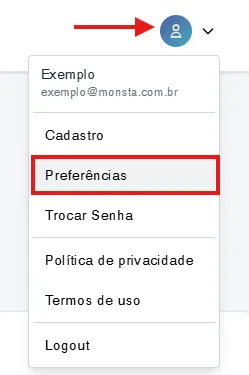
Section titled “1. Access Account Preferences”After logging in to the Client Area, click the user options icon located in the top right corner of the screen and select Preferences.
2. Enter the new email address
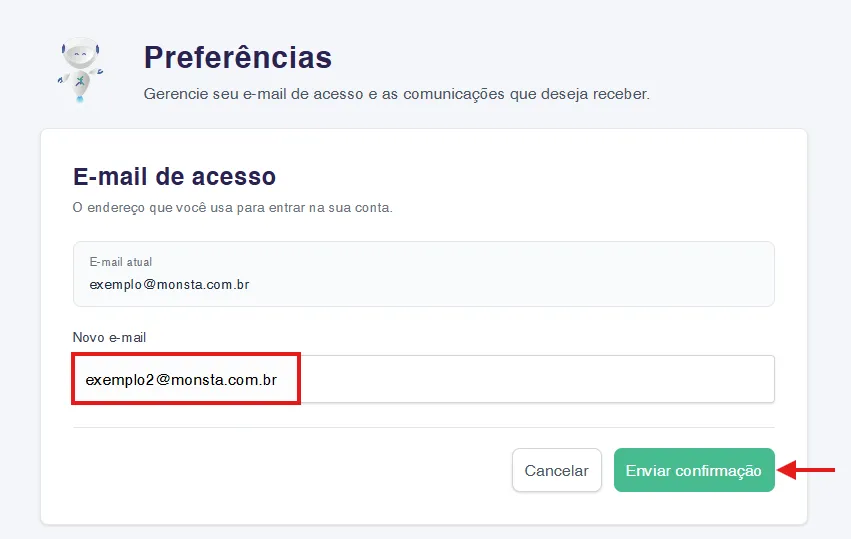
Section titled “2. Enter the new email address”On the Preferences screen, in the New email field, type the new address you want to use to access your account and click the Send confirmation button.
3. Check your inbox
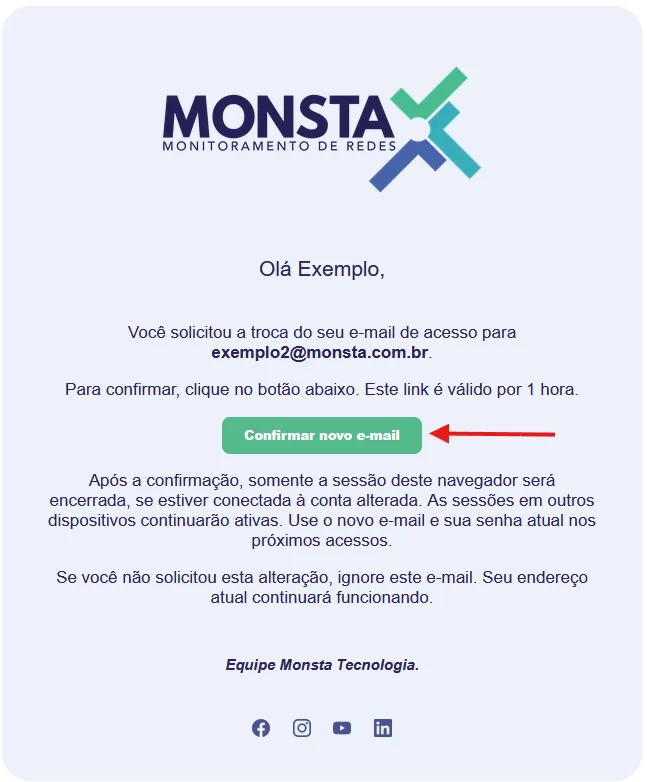
Section titled “3. Check your inbox”You will receive a message sent from no-reply@monsta.com.br. Open the email and click the Confirm new email button.
4. Confirm the change
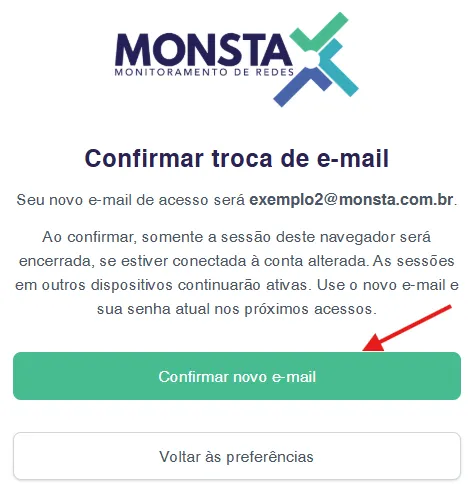
Section titled “4. Confirm the change”When you click the link, a new browser page will open. Click the Confirm new email button to finish the process.
Done! Your email has been successfully changed. The current session will be ended and you will be redirected to the login page, where you can access the client area using the new email address and the same password.